WiFi Not Working? Here’s How to Fix It Without Stress
Imagine you’re ready to stream a show, join a video call, or scroll your favorite app—and then your WiFi suddenly stops working. It’s annoying, frustrating, and it always seems to happen at the worst time.
The good news? You’re not alone, and better yet, most WiFi issues are super common and easy to fix—even without tech support. Whether your connection keeps dropping, your phone won’t connect, or your laptop acts up, this guide walks you through real solutions that work.
Start with the Easiest Fixes First
1. Check the Basics (Yes, Really!)
Let’s keep it simple. Ask yourself:
- Is the router plugged in and turned on?
- Are the little lights blinking normally?
- Is Airplane Mode on by mistake?
You’d be surprised how often one of these small things is the culprit. It happens to all of us.
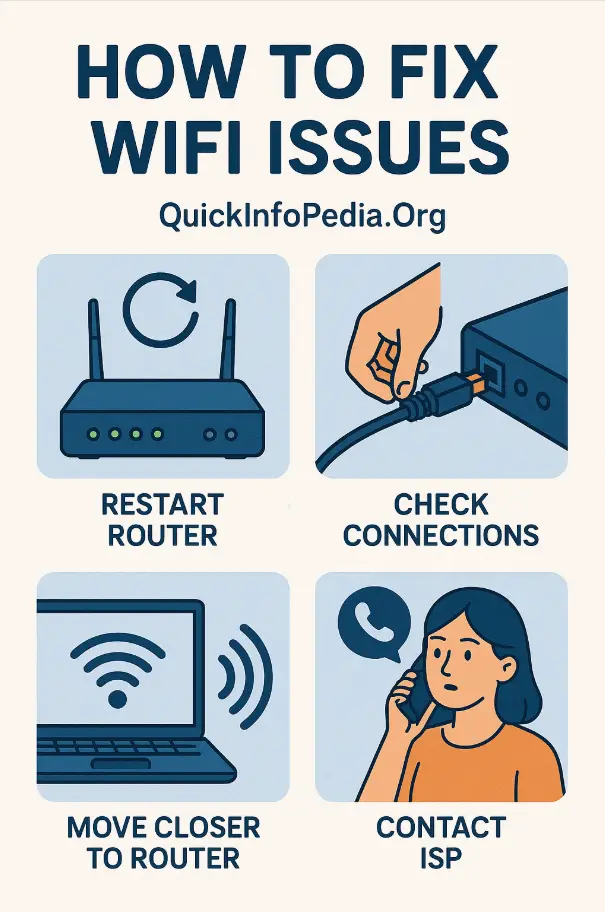
2. Restart the Router and Modem
This one works like magic most of the time:
- Unplug both the router and modem
- Wait about 30 seconds
- Plug the modem back in first, then the router
Give them a minute or two to reset. You might be back online faster than you expect.
Fix WiFi Problems on Your Devices
Laptop Issues?
- On Windows: Go to settings and run the “Network troubleshooter”
- On Mac: Open “Network” settings and click “Renew DHCP Lease”
Phone Can’t Connect?
- Turn Airplane Mode on, then off
- Forget the WiFi network and reconnect
- Restart the phone if that doesn’t help
Smart TV Acting Up?
- Restart the TV
- Re-enter your WiFi password
- Move your router closer if the signal is weak
Signal Problems? Let’s Talk Interference
Sometimes the issue isn’t your devices — it’s the space around them. Devices like microwaves or baby monitors can mess with your signal.
Here’s what helps:
- Keep your router in an open, central spot
- Avoid placing it behind furniture or near thick walls
- Try changing your WiFi channel in the router settings to reduce noise
Phone or iPhone Still Not Connecting? Try This
- On iPhone: Go to WiFi settings, forget the network, and reconnect
- Still not working? Go to Settings → General → Reset → Reset Network Settings
- On Android: Restart the device, clear your network settings, and try again
Fix Common Tech Errors Like DNS or IP Conflicts
If you’re seeing strange messages like:
- “DNS server not responding”
- “No internet, secured”
- “IP configuration failed”
Here’s what you can do:
- Change your DNS settings to something like Google’s (8.8.8.8)
- On Windows, open Command Prompt and type:
bashCopyEditipconfig /release
ipconfig /renew
Easy fixes that often solve the problem in seconds.
WiFi Keeps Disconnecting? Look at Your Router
When the connection keeps dropping:
- Your router may be overheating
- You might need a firmware update
- Too many devices may be connected at once
Log into your router settings (usually at 192.168.0.1), check for updates, and reboot the system. It makes a bigger difference than you’d think.
Quick Fix Table
| Problem | Try This First |
|---|---|
| No connection at all | Restart router and modem |
| Phone won’t join WiFi | Forget & reconnect to the network |
| WiFi says “connected” but no web | Update DNS or renew IP |
| iPhone not linking to WiFi | Reset network settings |
| Internet keeps dropping | Move router, check for interference |
Don’t Fall for These Common Mistakes
- Skipping the restart step
- Not updating your router firmware
- Using outdated phone or computer software
- Overlooking physical issues like loose cables
- Letting the router get too hot or stuck in a corner
Final Words
Losing your WiFi connection can feel like a mini disaster—but most problems are totally fixable at home. Just take a breath, go through these simple steps, and you’ll likely be reconnected in no time.
And if you’ve tried everything and still no luck? Reach out to your internet provider or consider upgrading to a better router or mesh WiFi system for stronger coverage.
FAQs
Q: Why does my WiFi say “connected” but nothing loads?
A: You might have a DNS or IP issue. Try changing your DNS settings or restarting your modem.
Q: My phone won’t connect to WiFi—what now?
A: Forget the network in settings, reconnect, and restart your phone. Also, check for recent system updates.
Q: Why does my WiFi keep disconnecting every few minutes?
A: That could be due to interference, outdated firmware, or too many devices using the network at once.