How to Reset Android Phone: A Fresh Start in a Few Simple Steps
Is your Android phone acting up lately? Maybe it’s running slow, crashing, or just not feeling right anymore. It happens—and don’t worry, you’re not alone. Phones, like us, need a fresh start sometimes. And the best way to do that? A reset.
In this guide, I’ll walk you through how to reset your Android phone—step by step, without the tech overwhelm. Whether you forgot your password, want to clean things up, or fix annoying bugs, resetting might be the perfect solution.
Why Resetting Can Feel Like a Relief
We get attached to our phones. But over time, they get cluttered—apps we don’t use, files we don’t need, and problems we didn’t ask for. Resetting your Android isn’t just about fixing errors—it’s about letting go of the digital mess and giving your phone a clean slate.
So if you’re thinking, “Is it time?”—chances are, yes.
Method 1: Factory Reset Through Settings
This is the most common way to reset your Android. It’s quick and effective when your phone is still working normally.
How to do it:
- Open Settings.
- Tap System > Reset options.
- Choose Erase all data (factory reset).
- Confirm your PIN or pattern.
- Tap Erase everything.
That’s it. Your phone will reboot like new. But remember—this will erase all your data, so back up first!
Method 2: Reset Without a Password (Using Buttons)
Locked out of your phone? Forgot your password? It’s frustrating, but there’s still hope.
Here’s what to do:
- Power off your phone.
- Press and hold Power + Volume Down (or Up) until the recovery screen shows up.
- Use volume keys to go to Wipe data/factory reset.
- Press the Power button to select.
After the reset, your phone will still need your Google login for security—but at least you’re back in.
Reset a Samsung Phone? Here’s How
Samsung users, your steps are a bit different.
Try this:
- Go to Settings > General Management > Reset.
- Select Factory Data Reset.
- Enter your PIN or password.
- Tap Delete All.
Simple, secure, and just as effective.
When Should You Actually Reset Your Phone?
Not every little glitch needs a reset. But here are signs it might be time:
- Constant lag or freezing
- Network problems
- Too much junk taking up space
- Preparing to sell or give away the phone
A reset helps your phone breathe again. It’s like clearing out a cluttered room—you’ll feel better afterward.
Want to Reset Without Losing Data?
You don’t always have to erase everything. If your goal is to fix small issues, try this:
- Go to Settings > System > Reset options
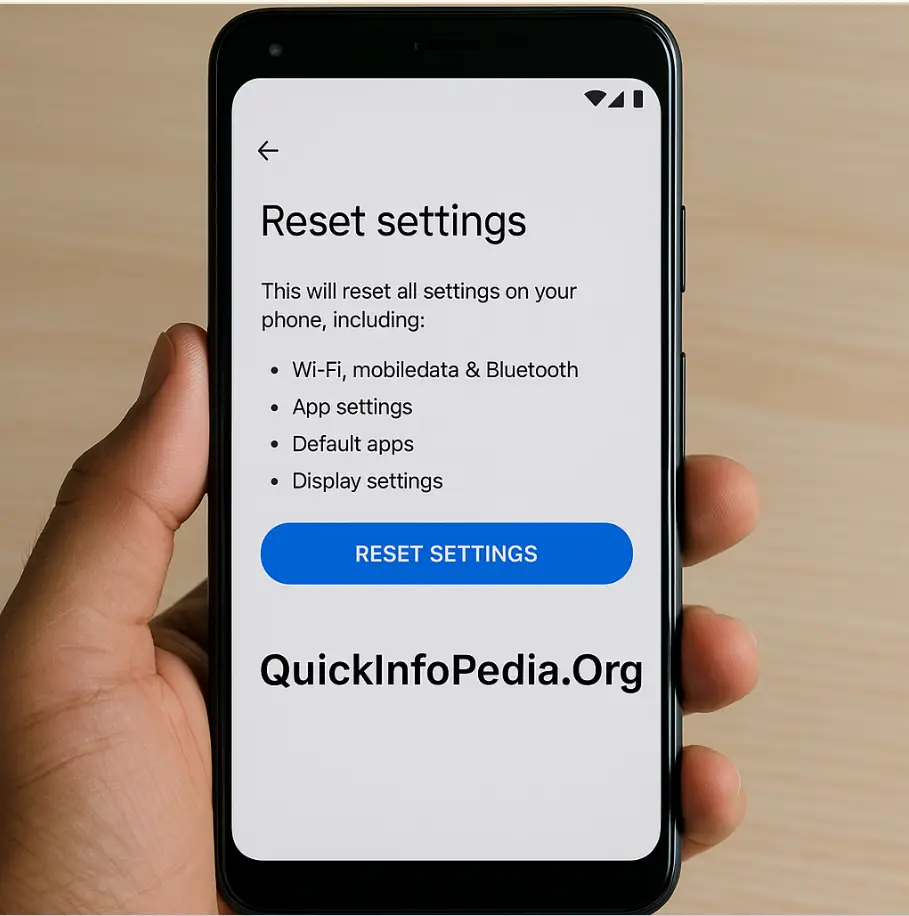
- Choose Reset Wi-Fi, mobile & Bluetooth or Reset app preferences
These options refresh your settings but keep your files and photos safe.
How to Reset Your Phone Using Your Google Account
If you lost your phone or got locked out, Google can help.
Use Find My Device:
- Go to android.com/find.
- Log in with your Google account.
- Choose your device.
- Click Erase device.
This is handy if your phone is lost or stolen and you want to protect your information.
Will Resetting Delete Everything?
Yes, a full factory reset deletes:
- Apps and settings
- Messages and contacts
- Photos, videos, and music
It’s a full wipe. So if you don’t want to lose anything, make a backup first—always.
Backup First—Always
Before you reset, take five minutes to back up. It’s easy and saves you from losing your favorite memories.
Quick backup tips:
- Use Google One for a full backup.
- Sync photos with Google Photos.
- Transfer important files to a PC or external drive.
You’ll thank yourself later.
In Summary: Resetting Isn’t Scary—It’s Smart
Resetting your Android phone doesn’t mean something’s wrong—it means you care enough to fix it. Whether you’re cleaning up or troubleshooting, knowing how to reset your Android phone puts you back in control.